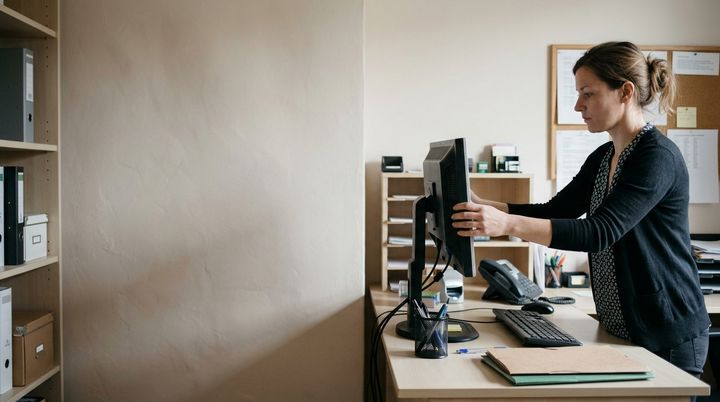
Screen Work (DSE)
What is DSE? Screen work, who counts as a regular user and what a good set-up looks like

Liam Jones

Founder of Pilla
Date Modified
22 November 2026


Date modified: 22nd November 2026 | This article has been written by Pilla Founder, Liam Jones, click to email Liam directly, he reads every email.
DSE, or display screen equipment, is any screen people use for work: monitors, laptops, tablets and phones. Here is who counts as a regular screen user, what a good set-up looks like, and the small changes that cut aches, eye strain and fatigue.
Article Content
DSE stands for display screen equipment: any screen used for work, together with what goes with it. That means desktop monitors, laptops, tablets, phones, tills and touchscreens, plus the keyboard, mouse, chair and desk. Screen work is the work done on them.
Using a screen isn't harmful in itself. The problems come from how and how long people use one: hours in the same position, a screen too low or too far away, a chair that doesn't fit, and no breaks. The result is sore necks, backs, shoulders and wrists, tired eyes and headaches. Most of it can be prevented with a decent set-up and a few habits.
Screen work at a glance
- DSE is any work screen, from an office monitor to a phone used for checks on shift.
- Regular users face the most risk: people who use a screen for long stretches most days.
- Set the chair first, then the desk, keyboard and screen around it.
- Top of the screen at about eye level, roughly an arm's length away.
- Break up screen time. Short, frequent changes of activity beat one long break.
- Ask the user. A quick workstation assessment with them finds most problems in minutes.
What it is, and why it matters
Screen work affects the body in three main ways.
- Muscles and joints. Holding the same posture for a long time, especially a head tipped forward or shoulders hunched, strains the neck, shoulders and back. Repeated small movements with a mouse or keyboard can strain wrists and forearms.
- Eyes. Focusing on a screen at the same distance for a long time causes tired, dry eyes and blurred vision, often with headaches. It doesn't damage eyesight, but it can show up an eye problem someone didn't know they had.
- Fatigue and stress. Long, unbroken stretches of screen work, tight deadlines and badly designed software all add up.
Who counts as a regular user
The risk grows with how long and how often someone uses a screen. A useful test is: does this person use a screen for an hour or more at a time, most days, as a normal part of their job? If yes, treat them as a regular user and assess their workstation. Exactly who the law counts as a user differs by country, and that's covered at the end of this post.
Regular users often include office and admin staff, reception, bookings and reservations teams, rota planners, managers doing paperwork, and anyone working from home.
Frontline screens count too
In many frontline jobs, the screen is a phone or tablet: checklists, temperature records, stock counts, rotas. Short bursts of phone use are low risk. But a supervisor who spends an hour every afternoon doing paperwork on a phone, head bent, is doing screen work. A tablet stand, a quick change of position, or moving the long task to a laptop or desktop helps.
A worked example
A hotel's reservations team works from a back office. One team member has neck pain by mid-afternoon most days. A workstation assessment with her takes ten minutes and finds the cause: she uses a laptop flat on the desk, so she's looking down all day, and the chair is too low for the desk, so her shoulders are hunched.
The fixes cost very little. A laptop stand raises the screen to eye level. A separate keyboard and mouse go on the desk. Her chair goes up until her forearms are level with the desk, and a footrest takes up the gap under her feet. Two weeks later, the neck pain has gone.
What a good set-up looks like
Set things up in this order: chair, then desk and keyboard, then screen.
| Part | Good set-up |
|---|---|
| Chair | Adjusted so feet are flat on the floor or a footrest, thighs roughly level, lower back supported |
| Arms | Forearms roughly level with the desk, shoulders relaxed, elbows close to the body |
| Keyboard | Directly in front, close enough that you don't reach, with a little space in front for wrists to rest between typing |
| Mouse | Close beside the keyboard, at the same level, so the arm stays near the body |
| Screen | About an arm's length away, top at or just below eye level, directly in front |
| Laptop | Raised on a stand to the right height, with a separate keyboard and mouse for long sessions |
| Light | Screen at right angles to windows to avoid glare, brightness matched to the room |
| Space | Enough room under the desk for legs, and enough on the desk for papers and kit |
| Phone and tablet | On a stand for longer tasks, rather than held in the lap or flat on a counter |
Good habits
- Change activity often. A short pause or change of task every so often, standing up to file, make a call or get water, does more than one long break.
- Rest the eyes. Looking at something far away every so often relaxes the eye muscles. Many people use the "every 20 minutes, look 20 feet away for 20 seconds" rule as a reminder.
- Move. Stretch the neck, shoulders and wrists, and walk around.
- Report early. Aches that keep coming back are a sign the set-up needs another look.
How a workstation assessment works
A workstation assessment is a short check of one person's set-up, done with them. It's quicker and more useful than it sounds.
- Ask about their work. How long are they at the screen? What tasks? Any aches, eye strain or headaches?
- Check the chair. Is it adjustable and adjusted? Is it in good condition?
- Check the desk, keyboard and mouse. Positions, reach and space.
- Check the screen. Height, distance, glare, brightness, and whether it's clear and stable.
- Check the room. Light, temperature, noise and space.
- Agree changes, make them, and write down what was done.
- Look again when something changes: a new desk, a move, a new piece of kit, or a complaint of aches.
Our DSE workstation assessment runs through this on the phone, and the screens risk assessment covers the wider picture for a team. Staff learn the set-up themselves in screens training, which is the quickest way to cover home workers. A general risk assessment explains how it all fits together.
Common mistakes and myths
| What people say | What's actually true |
|---|---|
| "Screens damage your eyes" | They cause tiredness and strain, not lasting damage, but they can show up an eye problem |
| "An expensive chair fixes everything" | A cheap chair adjusted well beats an expensive one set up wrong |
| "Laptops are fine all day" | Flat on a desk, a laptop forces you to look down. Raise it and add a keyboard |
| "One long lunch break is enough" | Short, frequent changes do more than one long break |
| "Home workers sort themselves out" | Their set-up is often a kitchen table. Assess it too |
| "Phones don't count" | Long tasks on a phone or tablet are screen work |
| "Sit up perfectly straight" | Relaxed and supported is better than rigid. Change position often |
Rules where you are
What employers must do for screen users, who counts as a user, and whether eye tests or glasses are covered differs by country. These regulators keep their own pages up to date, so check yours:
- Great Britain: the Health and Safety Executive, working safely with display screen equipment
- Northern Ireland: HSENI, display screen equipment
- Ireland: the Health and Safety Authority, display screen equipment FAQs
- United States: OSHA, computer workstations
- Canada: the Canadian Centre for Occupational Health and Safety, office ergonomics: the modern office, plus your province's workplace safety regulator
- Australia: Safe Work Australia, model code of practice on hazardous manual tasks, plus your state or territory regulator
- New Zealand: WorkSafe, office workers
FAQ
What does DSE stand for?
Display screen equipment. It covers any screen used for work, such as monitors, laptops, tablets and phones, together with the keyboard, mouse, chair and desk used with it.
Who needs a DSE assessment?
Anyone who uses a screen for long stretches most days as part of their job. That includes office staff, reservations and admin teams, managers who do a lot of paperwork, and people working from home.
What is the correct height for a computer screen?
The top of the screen should be at or slightly below eye level, about an arm's length away. That lets you look straight ahead or slightly down without tipping your head forward.
How often should you take a break from the screen?
Short, frequent breaks or changes of task work better than one long break. A few minutes away from the screen every hour or so, plus looking into the distance now and then, helps most people.
Do home workers need a DSE assessment?
Yes, if they use a screen for long stretches. Their set-up is often improvised, so a quick assessment, which they can do themselves with a checklist, is especially useful.